Monthly Bill Tracker: List Recurring Bills in Your Budget
By Cells and Cents. Published November 20, 2026.
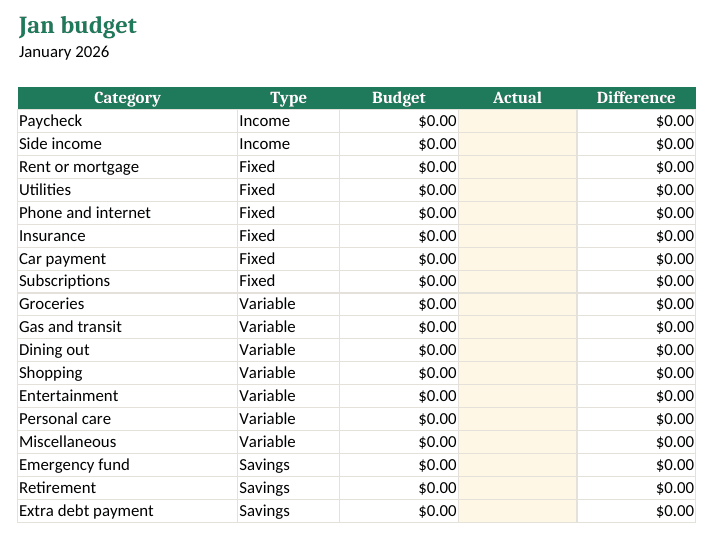
A monthly bill tracker is a list of every recurring bill you pay in a month, showing what you expect to pay and what you actually paid. In our Monthly Budget template, you build one by entering each bill as its own Fixed category line, then filling in the Actual column as you pay each bill.
There are plenty of printable bill checklists and calendars. This guide takes a different route: it keeps your bills inside your budget, so the same sheet that lists rent and the phone bill also shows your groceries, savings and money left over. We cover what the Monthly Budget template actually has, how to turn its Fixed lines into a recurring bills list, and a worked example recalculated from the template file.
What a monthly bill tracker needs to cover
A useful bill list answers three questions: which bills are coming, about how much each one is, and whether each has been paid.
The Consumer Financial Protection Bureau's bill calendar tool puts it this way: "Most people have recurring bills and expenses like rent, utilities, car payments, and insurance. Most of these bills have a fixed due date." It suggests gathering all the bills you pay in one month and adds: "Remember to include any bills that are paid automatically."
Automatic payments can be easy to leave off a list, because you may never see a paper bill. Streaming services, app subscriptions and gym memberships are worth checking for.
What the Monthly Budget template has (and does not have)
To keep this honest, here is exactly what is in the file.
Setup tab: a Year cell and up to 30 category rows, each with three columns:
- Category: a name you type, such as Rent or Electric
- Type: a dropdown with Income, Fixed, Variable or Savings
- Monthly budget: the amount you plan for that category
Each month tab (Jan to Dec): the categories and budgets pulled from Setup, in five columns:
- Category and Type (from Setup)
- Budget (from Setup, so every month starts with the same budgets)
- Actual: what you really paid or earned, typed in by you
- Difference: Actual minus Budget, calculated for you
Below the lines, each month tab shows Total income, Total fixed, Total variable, Total savings, Money left over and Savings rate, for both Budget and Actual. The Summary tab rolls the actual totals for all 12 months into one table with a chart.
What it does not have: there is no due date column, no paid or unpaid column, no checkbox, and no reminders or alerts. It is a budget, not a dedicated bill tracker. The steps below show how to use its Fixed lines as a recurring bills list within those limits.
How to list recurring bills as Fixed lines
1. Give each bill its own line
The starter Setup list has broad Fixed categories such as Utilities, Insurance and Subscriptions. For a bill list, split them up so each bill you pay is one row: Electric, Gas heat, and Water and sewer instead of Utilities; Car insurance and Renters insurance instead of Insurance; and one line per subscription. Set the Type for each to Fixed.
2. Put the due day in the name
Since there is no due date column, you can add the due day to the category name, for example "Electric (due 8th)". Then list the bills on Setup in due date order, so each month tab reads top to bottom like the month itself.
3. Budget the usual amount
For a bill that is the same every month, like rent or a car payment, the budget is that amount. For a bill that changes, like electric, use a typical amount from recent bills. The Difference column will show how far each month's real bill landed from it.
4. Enter Actual when you pay
Because there is no paid column, a simple habit is to type the Actual amount only when the bill is paid. A blank Actual cell then means "not paid yet." One thing to know: until you enter an Actual, that line's Difference shows the full budget as a negative number, and the Actual totals (including Money left over) only count what you have entered so far.
5. Handle bills that are not monthly
Some bills come once or a few times a year, like an annual membership. A common approach is to set aside a monthly amount on a Savings line so the money is ready when the bill arrives. That is a sinking fund; our guide on what a sinking fund is walks through the math.
Worked example: January bills in the Monthly Budget
We filled in a copy of the Monthly Budget template for a made-up single earner, set the year on Setup to 2027, and entered January figures on the Jan tab. We replaced the starter categories with 21 lines: one paycheck, 13 recurring bills typed as Fixed, 5 Variable lines and 2 Savings lines. Then we recalculated the workbook in LibreOffice and checked the bill totals separately in a short script. Everything matched to the cent. These are sample numbers only, not a suggestion for what anyone should earn, spend or pay.
Step 1: the bill lines on Setup
The 13 Fixed lines, in due date order, with their monthly budgets:
- Rent (due 1st): $1,300.00
- Gym (due 1st): $30.00
- Streaming (due 3rd): $17.99
- Car insurance (due 5th): $118.00
- Renters insurance (due 5th): $16.00
- Electric (due 8th): $85.00
- Music app (due 9th): $11.99
- Gas heat (due 12th): $60.00
- Internet (due 15th): $65.00
- Car payment (due 18th): $245.00
- Water and sewer (due 20th): $45.00
- Phone (due 22nd): $48.00
- Student loan (due 25th): $180.00
The Jan tab's Total fixed budget is $2,221.98.
Step 2: a mid-month check on January 14
By January 14, the first eight bills had been paid, so only those got an Actual amount (plus the $3,650.00 paycheck):
- Rent: $1,300.00 actual, Difference $0.00
- Gym: $30.00 actual, Difference $0.00
- Streaming: $19.99 actual, Difference $2.00 (the price went up)
- Car insurance: $118.00 actual, Difference $0.00
- Renters insurance: $16.00 actual, Difference $0.00
- Electric: $97.42 actual, Difference $12.42
- Music app: $11.99 actual, Difference $0.00
- Gas heat: $78.15 actual, Difference $18.15
The Jan tab's Total fixed actual reads $1,671.55: the amount paid on bills so far. The five unpaid bills (Internet through Student loan) still have blank Actual cells, and their budgets add up to $65.00 + $245.00 + $45.00 + $48.00 + $180.00 = $583.00.
If those five come in at budget, January's bills will total $1,671.55 + $583.00 = $2,254.55. Note that the Jan tab's Money left over reads $1,978.45 at this point, because nothing has been entered yet for groceries, other variable spending or savings. Mid-month, the bill lines tell you more than the bottom line does.
Step 3: the month-end totals
By January 31, every bill had an Actual amount. Four bills differed from budget:
- Streaming: $2.00 over
- Electric: $12.42 over
- Gas heat: $18.15 over
- Water and sewer: $41.80 actual against $45.00, so $3.20 under (Difference -$3.20)
The bill differences add up to $2.00 + $12.42 + $18.15 - $3.20 = $29.37. The Jan tab agrees:
- Total fixed: $2,221.98 budgeted, $2,251.35 actual, $29.37 over
With the rest of the month entered (Variable $779.11 actual against $780.00 budgeted, Savings $240.00 as planned), the Jan tab shows:
- Money left over: $3,650.00 - $2,251.35 - $779.11 - $240.00 = $379.54 (the budget column showed $408.02)
- Savings rate: 6.6%
The Summary tab's January row picks up the same actual totals: Income $3,650.00, Fixed $2,251.35, Variable $779.11, Savings $240.00 and Left over $379.54.
Lining bills up with paydays
A budget tab shows the month as a whole, not week by week. If you get paid every week or two, it can help to see which bills land between paychecks. The CFPB bill calendar suggests writing in the dates and amounts you get paid, and comparing weekly bill totals to weekly income. It adds: "If you have more bills than income in a given week, consider asking to change the due dates of some of your bills." For the payment dates themselves, it says: "If you're paying by mail, mark the due date at least seven days before it is due. For in-person or online bill payment, mark two or three days before the due date to ensure you are not late."
You can keep that printable calendar next to the spreadsheet: the calendar for timing, and the Fixed lines for amounts and the budget.
Where a bill list fits in your budget
Your recurring bills are usually the first lines you fill in, whatever budgeting method you use:
- In a zero-based budget, the bills are the first jobs you give your take-home pay.
- In envelope budgeting, each bill can be its own digital envelope.
- In the 50/30/20 budget, most recurring bills sort into needs or wants.
For a filled-in month using the starter categories, see our personal budget example in Excel.
Getting the template
The Monthly Budget is an Excel (.xlsx) template for $12. It includes 12 monthly tabs plus a yearly summary, budgeted vs actual with automatic differences, and customizable categories. It is a budget you can list your bills in, not a dedicated bill tracker, so if you want due date reminders, keep a calendar or other reminder alongside it.
FAQ
What is a monthly bill tracker?
It is a list of the recurring bills you pay each month, such as rent, utilities, insurance, loan payments and subscriptions, with the amount you expect to pay and what you actually paid. Some trackers are calendars or checklists. This guide shows how to keep the list inside a monthly budget spreadsheet instead.
Is the Monthly Budget template a bill tracker?
No. It is a monthly budget with Category, Type, Budget, Actual and Difference columns on each month tab. You can use it to list your bills by entering each one as its own Fixed category line, but it has no due date column, no paid or unpaid column, and no reminders.
How do I show which bills are paid?
The template has no paid column. One simple habit is to enter a bill's Actual amount only after you pay it, so a blank Actual cell means not paid yet. Until you enter it, the Difference column for that line shows the full budget as a negative number.
How do I track due dates in a budget spreadsheet?
The Monthly Budget has no due date column. Category names are plain text, so you can add the due day to the name, for example Rent (due 1st), and list your bills on the Setup tab in due date order. For a day-by-day view, the CFPB offers a free printable bill calendar.
What about bills that change every month or come once a year?
For a bill that changes, like electric or gas heat, budget a typical amount and enter the real bill in Actual; the Difference column shows how far off it was. For a bill that comes once or a few times a year, you can set aside a monthly amount on a Savings line, which is the idea behind a sinking fund.
What does the worked example show?
A made-up January 2027 with 13 recurring bills on Fixed lines. By January 14, eight bills were paid for $1,671.55, with $583.00 of budgeted bills still to come. At month end the Fixed total was $2,251.35 against a $2,221.98 budget, $29.37 over.
Related template
Monthly Budget
Plan every dollar for the month and see what is left at a glance.
$12
View template